
Learn 125+ AI tools in MS-CIT
This course offer following learning modules

 Basic Computer and Smartphone Use Skills
Various Information Technology Concepts and Awareness about inventions and discoveries
Basic Computer and Smartphone Use Skills
Various Information Technology Concepts and Awareness about inventions and discoveries
Computer Basics
- Describe the importance of computers in today's world.
- Identify the main parts of a computer.
- Identify the steps for starting and shutting down a computer.
- Identify the different groups of keys on a keyboard.
- Basic typing, typing in multiple languages.
- Perform different tasks by using a mouse.
- Describe other common computing devices such as laptops, netbooks, tablets, and phones.
- Identify the primary hardware components of a computer.
- Explain an operating system.
- Explain programs and data.
- Describe a network and the types of networks.
- Explain the terms Internet, World Wide Web, and intranet.
- Compare the features of different types of computers.
- Explain the role of memory.
- Explain the basics of computer performance.
- Explain the concept of minimum requirements for software.
- Describe the types of productivity programs and their uses.
- Describe the types of communications programs and their uses.
- Describe the uses of educational and entertainment programs.
- Explain the common functions of an operating system.
- Identify the components of the Windows 10 interface.
- Explain the options available in the Start screen of Windows 10.
- Work with the Windows 10 interface within programs.
- Manage files and folders in Windows Explorer.
- Perform basic file operations.
- Describe how computers have become a central part of everyday rural and urban life – around the world.
- Identify the career opportunities available for a computer-literate person.
The Internet, and the World Wide Web
- Describe the uses of the Internet and Cloud Services.
- Identify the requirements for an Internet connection.
- Identify the features of two types of Internet connections.
- Relate the term bandwidth to types of Internet connections.
- Describe the components of the Web.
- Explain how Web addresses work.
- Explain how to connect to the Internet.
- Explore Web sites by using a browser.
- Describe how to save favourite Web sites.
- Search for reliable information on the Web.
- Explain how to perform transactions over the Web.
- Explain how e-mail works.
- Write and send e-mail messages.
- Manage e-mail messages.
- Identify correct e-mail etiquette
- How to create an email address.
- Identify the features of online communities.
- Explain how instant messaging and Web-cam video communication works.
- Explain how to create and publish Web pages.
- Explain how to blog using Windows Live Writer.
Information Technology, The Internet, and You Information Systems
- People
- Software
- Hardware
- Data
- Connectivity and the Mobile Internet
The Internet, the Web and Electronic Commerce The Internet and the Web
- Internet Access
- Web Utilities (Filters, File transfer utilities, Internet Security Suites)
- Communication
- Search Tools
- Electronic Commerce
- Cloud Computing
- The Internet of Things
Application Software
- General-Purpose Applications
- Specialized Applications
System Software
- Operating systems
- Mobile Operating systems
- Desktop Operating systems
- Utilities
The System Unit System Unit
- System Board
- Microprocessor
- Memory
- Expansion Slots and Cards
- Bus Lines
- Ports
- Power Supply
- Electronic Data and Instructions
Input and Output
- What is Input?
- Keyboard Entry
- Pointing Devices
- Scanning Devices
- Image Capturing Devices
- Audio-Input Devices
- What is Output?
- Monitors
- Printers
- Audio-Output Devices
- Combination Input and Output devices
Secondary Storage
- Storage
- Hard Disks
- Solid State Storage
- Optical Discs
- Cloud Storage
- Mass Storage Devices
Communications and Network Communications
- Communication Channels
- Connections Devices
- Data Transmission
- Networks
- Network Types
- Network Architecture
- Organizational Networks
Databases
- Data
- Data Organization
- Databases
- DBMS Structure
- Types of Databases
- Database Uses and Issues
AI Tools
- Cortana / Microsoft Co-Pilot
- Google Assistant/Gemini
- Otter.ai
- ChatGPT
- IFFFT- Task Automation
- Digital Wellbeing - Google
- Google Fit
 Smart Typing Skills
Scientific method of errorless typing in English/Devanagari (Marathi/ Hindi)
Smart Typing Skills
Scientific method of errorless typing in English/Devanagari (Marathi/ Hindi)
Introduction
- Introduction to Typing
- Touch Typing
- Voice Typing
- Keyboard
- Types of Keyboards
- Ergonomic Keyboards
- PDA Keyboards
- Devanagari Font and complex script settings, Unicode settings
- Muscle Memory
- Names of Fingers
- Finger Placements
- Minimizing Hand Movements
- Typing Trivia
- Measuring Progress
Introduction to Keyboard
- Introduction to Keyboard, Home Row
- The Space Bar
- The Enter Key
- Using Keys
- Typing Tips
- Learning the G and H Keys
- Learning the Apostrophe Key
- Top Row
- Learning the E and I Keys
- Learning the W and O Keys
- Learning the Q and Y Keys
- Learning the P and T Keys
- Bottom Row
- Learning the C and Comma Keys
- Learning the Tab Key
Introduction to Number Pad
- Num Pad
- Touch Typing on the Number Pad
- Num Pad Home Row Positions
- Index Finger Keys
- Typing Tips
- Learning the X and Period Keys
- Learning the Z and Slash Keys
- Learning the B and N Keys
Other Keys
- Other Keys, Numbers and Symbols
- Shift Keys
Number and Symbols
- Numbers
- Using Number Keys – 1 to 5
- Using Number Keys – 6 to 9 and zero
- Symbols
- Learning the Square Brackets and Back Slash Keys
- Navigation Keys
- End Key
- Page Up and Page Down Keys
- Arrow Keys
- Other Keys
- Esc Key
- Windows Key
- Special Keys
- Caps Lock
- Numeric Keypad
- Middle Finger Keys
- Ring Finger Keys
- Little Finger Keys
Data Entry in Various Tools
- Microsoft Excel
- Creating a Workbook
- Using Templates
- Downloading Templates
- Creating a Blank Workbook
- Moving Between Cells
- Entering Headings
- Entering Data
- Adjusting Column Width
- Open Office Writer
- Creating a New Document
- Entering Text
- Text Wrapping and Tabs
- Selecting Text
- Editing Text
- Undoing and Redoing
- Editing Modes
- Open Office Calc
- Creating a Spreadsheet
- Moving Between Cells
- Entering Headings
- Entering Data
- Adjusting Column Width
- Google Docs
- Adobe PageMaker
- CorelDRAW
- Adobe InDesign
- Data Entry
- Role of a Data Entry Operator
- Need for Data Conversion
- Skills Required for Data Entry
- Types of Data Entry Jobs
- Data Entry Jobs in Industrial Sector
- Data Entry Jobs in Medical Sector
- Related Jobs
- Types of Data
- Data Validation
- Data Categories
- Data Correctness
- Compiling Data
- Data Entry Tools
Data Conversion, Scanning and Image Assisted Data Entry
- Scanning
- OCR
- Data Conversion for the Web
- Other Conversions
- Data Entry Pay Scales
- Factors affecting Pay Scale
Copyrights and document formats
- Copyright
- Legal Documents and Stamp Papers
- Other Documents
- Medical Transcription
- How Transcription Works
- Medical Transcription Course
- Stamp Papers
- Bank Documents
- KYC Details
- Loan Applications
- Form Entries
- Form Entry
- Publications
- Types of Typists
- More Information
- Typewriters To Computers
AI Tools
- Bhashini
- Quillbot
- Google Docs – Voice Typing
- Grammarly
- MonkeyType
- AI Writer
- ProKeys
 Digital Skills for Daily Life
For managing and living a better quality of life with the help of various mobile apps and websites
Digital Skills for Daily Life
For managing and living a better quality of life with the help of various mobile apps and websites
Internet and Connectivity
- Buying good internet plans for mobile
- Configure and activate internet connection for mobile
- Wi-Fi
- Tethering, Hotspot
Productivity
- Mobile Number Identification: Truecaller App
- Google Tasks
- Google Calendar
- To-Do, reminders, Alarms, Clock
- Gmail
- Voice Typing
- Smart Voice Assistant: Google Assistant, Siri
- Weather forecast: Accuweather
- JustDial
- Mobile Scanners (Adobe Scanner, Google Lens)
- Evernote
- QR code scanning
- Google Docs, Google Slides, Google Sheets, Google Drive
- Google Playbooks
- Voice Recorder
- Mirroring Apps
- Minutes of meetings: Otter
- Google Keep
- Android File Explorer
- DropBox
- Camera (Photo, Video)
Social Connect
- Networking for professional upgradation: LinkedIn
- Google Duo
- Skype
- Google Meet
Entertainment
- Booking movie/theatre tickets online: BookMyShow
- Watching movies online : YouTube, Netflix, Prime Video, Hotstar, Voot
- News apps: Inshorts, Daily Hunt
- Storytel, Audible, BookGanga
- Smart Home: Alexa, Google Home
- Casting (Mobile on TV)
- Online Music: Gaana, JioSaavn
Cashless Transactions
- Google Pay
- Paytm
- BHIM App
eBanking
- Opening net banking account
- Credit or debit card for online shopping
Bill Payment/ Recharge
- Recharge mobile phone online
- Pay Telephone bill online
- Pay electricity bill online
Travel
- Travel Planning: Yatra, MakeMyTrip, Trivago, Google Trip
- Railway Booking: IRCTC
- Flight tracking: Flight Radar
- Booking Cabs online: OLA, Uber
- mParivahan
Navigation
- Google Maps, GPS, Here Maps
New Media Literacy
- Image Editing, Audio Editing, Video Editing, Short clips, Facebook videos, Instagram videos
- Google Photos, Musemaze, Kinemaster
File Sharing
- Transfer using Bluetooth
eCommerce
- Online Shopping
- Amazon, Flipkart, Myntra, AJIO, Snapdeal
Utilities
- Utility services: Urban Company
- Quickr
- Buy and sell: OLX
Backup and Recovery
- Mobile Data Backup
- Contact/SMS Backup
- eWallets
- Digital Wallets
- SMS Organizer
Security
- FaceID
- Biometric Authentication
- PINs
- Emergency Number (ICE)
AI Tools
- ChatGPT
- DALL-E
- Todoist
- Notion
- Habitica
- Suno
- WhatsApp Meta/Meta AI
- Moises
- Zomato/Swiggy/Blinkit
- Amazon Alexa
- Leonardo AI
- Amazon Shopping
- Google Maps
- Google Keep
 AI Powered Office Productivity Skills
Knowledge of Office Automation tools to work effectively and smartly at workplace
AI Powered Office Productivity Skills
Knowledge of Office Automation tools to work effectively and smartly at workplace
Office Productivity Programs – MS Office (Word, Excel, PowerPoint) and Google Office (Docs, Sheets, Slides)
- Describe the functionality of the common programs in Microsoft Office 2019 and Office Web Apps.
- Identify the main components of the graphical user interface (GUI) of a productivity program.
- Use the pointer to navigate in a program.
- Identify the tabs, groups, and commands on the Ribbon.
- Use the buttons on the toolbars to perform various tasks.
- Type text and characters in a program by using the keyboard.
- Explain the use of keyboard shortcuts and key combinations.
- Perform basic tasks in a word processor.
- Find and open templates in word processor.
- Edit and format text in word processor.
- Work with tables and pictures in word processor.
- Proofread a document in a word processor.
- Identify the benefits of desktop publishing.
- Identify the components of a spreadsheet.
- Enter data into a spreadsheet.
- Perform basic mathematical tasks in a spreadsheet.
- Insert charts in a spreadsheet.
- Print a spreadsheet.
- Identify the elements of a presentation program.
- Create a presentation.
- Add graphics and multimedia to a presentation.
- Use the print options available in a presentation program.
- Explain basic concepts of a database.
- Create a database.
- Work with records in a database.
- Explain what database queries are and how they work.
- Work with reports.
Office Add-ins for Improved Productivity
- Microsoft App store add-ins for MS Word, MS Excel and MS PowerPoint
AI Tools
- MS PowerPoint Designer
- MS-Excel Data Analysis
- MS PowerPoint Presentation Creation
- MS PowerPoint Speech Coaching/ Rehearse with Coach
- Microsoft Copilot
- MS-Outlook - Email Drafting
- Google Chrome/Gmail - Help Me Write
- Trello
- Asana
- Google Slide - Smart Compose
- ChatGPT
- MS Team - Meeting Summaries
- Otter.AI
 Digital India Skills
To become a responsible citizen and avail various Government Services/Schemes
Digital India Skills
To become a responsible citizen and avail various Government Services/Schemes
Digital India Skills
- Applying for Birth Certificate online
- Using online government helpline services
- Finding Vehicle Details
- Visiting and exploring 'mygov.in'
- Booking appointment online in Government Hospital
- Filing income tax return
- Applying for Aadhaar Card, verifying and updating Aadhaar Details
- Getting alerts from Central Government
- Applying for Passport online
- Tracking status of my Passport application online
- Applying online for Pradhanmantri Suraksha Bima Yojana
- Applying online for Pradhanmantri Jeevan Jyoti Bima Yojana
- Using Digilocker to store certificates online
- Scanning and storing documents online
- Applying online for Pradhanmantri Awas Yojana
- Applying online for Voter ID Card
- Searching name in the Voter ID list
- Applying online for Driving License
- Applying for PAN Card online
- Applying online for Pradhan Mantri Fasal Bima Yojana
- Registering complaints on Consumer Forum
- Booking an appointment with Government officer Online Booking
- Viewing details on MGNREGA
- Making an application for right to information
- Using Rakshak App for safety of Women and Senior Citizens
- Applying online for Pradhanmantri Mudra Yojana
- Calculating income tax
- Checking weather status in nearby area
- Knowing all Emergency Numbers
- Applying for ration card online
- Applying online for Start-up Recognition
- Applying for education loan
- Applying online for Pradhanmantri Sukanya Samruddhi Yojana
- Applying for National Scholarships
- Registering complaints with National Human Rights Commission online
- Using mKisan Portal and Kisan App
- Locating blood bank nearby me, and know about stock availability
- Availing ePost Office Service of India Post
- Availability LPG services online
- Checking Provident Fund Online
- Applying online for Atal Pension Yojana
- Tracking status of the court case online
- Getting Soil Health card
- Becoming aware about the Agricultural Market Price using mKissan App
- Applying for Death Certificate online
AI Tools
- eNAM
- GramCover
- Gram Swaraj
- Unified Farmer Service Interface (UFSI) - AgriStack
- Umang
- eSanjeevani
- Qure.AI
- SOUL
- NSDL
- Unified Lending Interface (ULI) & Unified Payment Interface (UPI)
 Career and Job Readiness Skills
Job Readiness Skills
- Job Readiness and Digital Freelancing
- Careers in Digital Freelancing
- Use of Mobile for Digital Freelancing
- Internet for Digital Freelancing
- Mobile Data and Hotspot
- Creating Professional email ID
- Security for email account
- Retrieving lost password for email account
- Resume: Do’s and Don’ts
- Various Job portals
- Apply for suitable online jobs
- Create Professional Network on LinkedIn
- Digilocker: Store your documents online
- Google Drive for storage
- Communication and Etiquettes
- Gboard: Google Keyboard
- Grammarly
- Voice typing using Google Docs
- Notes taking using Google Keep
- Securing net banking transactions
- Use of Paytm and BHIM for Cashless transaction
- Use of PayPal
- Job opportunities on Freelancing portals
AI Tools
- Research Rabbit
- Iris.AI
- ChatGPT
- Meta AI
- GramTarang
- WriteSonic
- Freepik
- HeyGen
- Claude AI
 New Age Study Skills
Transform to style of studying in 21st Century and getting its benefits to the fullest
New Age Study Skills
Transform to style of studying in 21st Century and getting its benefits to the fullest
Smart Search
- Using Google to search more information about study topics
- Doing clustered search
- Using Wikipedia to search the information
- Searching and downloading eBooks (NCERT)
- Finding information about The World via https://knoema.com/atlas
Online and Free Learning
- Watching educational videos online (YouTube)
- Watching educational talks on TED Talks
- Listening to a podcast and learn cool science facts in
- 60 seconds
- Joining Massive Open Online Courses (MOOCs)
- Learning online courses on Coursera.org
- Learning online courses on Udemy App
- Learning any subject online for free on edx
- Learning from Best Colleges in the World - NPTEL
- Learning through videos on Khan Academy
- I want to improve my Social Learning/General Knowledge using Facebook
- Using Discovery Science for studying in a better way
- Learning programming/coding with peers on www.codecademy.com
- I can access online Research Papers (Google Scholar)
- I can participate in Live Discussions (Facebook Live)
- I can learn by discussions in forums (quora.com)
- Listening to music, watch videos and share online
- Learning through Edmodo
- Learning online courses on Moodle
Notes Making and Presentation
- Using Google Docs to share notes
- Organizing my day/ Notes, important points using Google Keep
- Making a presentation on my research and take real time feedback via Google Slides
- Express my Ideas using Mindmap tool
- Checking my project report for Plagiarism using Plagiarism checker
Collaboration and Data Organization
- Collaborating with peers to practice for competitive exams like IIT JEE
- Conduct a poll/survey/research using Google Forms
- Improving my productivity using StayFocusd app
- Keeping track of my important events/classes all in one place (Google Calendar)
Language Learning
- Searching synonyms, antonyms, and thesaurus on dictionary.com
- Checking grammar and spell check
- Improving vocabulary using volt
- Listening to Online Stories / Classic Literature in any language
- Learning a new language by interacting with my phone with the duoLingo App
Art, History and Humanities
- Learning about History using Google Arts and Culture
- Learning about the History of India, using India History App chronologically
- Drawing art on a tablet using an app
Learning through Experiments, Games
- Performing science experiments online- Physics
- Performing science experiments online– Chemistry
- Performing Math Experiments
- Learning about the stars by using http://stars.chromeexperiments.com/
- Testing Intelligence Quotient (IQ)
- Testing Emotional Quotient (EQ)
- Understanding my personality type - https://www.16personalities.com/
- Learning by playing games and improve my abilities - Elevate
- Learning by playing games and improve my abilities – NeuroNation
- Exploring http://planner5d.com/ for interior plans
AI Tools
- Slidesgo
- Gradescope
- Brainly
- Mendeley
- Wolfram Alpha
- Google Bolo (Read Along)
- Photomath
- Socratic by Google
- Unstuckstudy ai
- Coconote ai
- Microsoft Math Solver
- Perplexity AI
- Quizizz
 Prompt Engineering Skills
Coding skills to master if you want to thrive in a programming career.
Prompt Engineering Skills
Coding skills to master if you want to thrive in a programming career.
Prompt Engineering Skills
- What are prompts?
- Importance of prompts
- Verbal prompts
- Visual prompts
- Written prompts
- Interactive prompts
- Effective use of prompts in learning
- Tailoring prompts to different learning styles
- Overview of AI tools
- AI tools and prompts
- Case studies on AI-enhanced prompts
- Balancing complexity and simplicity in prompts
- Case Study: Creating effective prompts
AI Tools
- Partnering with AI: Pictory
- Partnering with AI: Socialbee
- Partnering with AI: Veed.io
Introduction to Coding Skills
- Introduction to Scratch Programming
- Introduction to C Programming Basics
- Introduction to Object-Oriented Programming (OOP) Basics
- Introduction and Features of Java
- Introduction to Python
- Introduction to Android
Smart Technologies and Apps
- DALL-E 2
- Playgroundai.com
- Starryai
- Cutout Pro
- Eesel app extension
- Wordtune
- Visily
- Fun with Technology
- Replika app
- Youper
- Womp
- Google Translate
- Be My Eyes
- LibriVox
- Missing Maps
- Earth5R
- Nudge
- Carbon Footprint and CO2 tracker
- Earth Hero: Climate Change
- ChatGPT
AI Tools
- Google Colab
- Amazon CodeWhisperer
- Mimo
- ChatGPT
- Tynker
- W3Schools
- PyCharm Edu
 Social Media Skills
 to make an impression in the Digital World
Social Media Skills
Social Media Skills to make an impression in the Digital World
Social Media Skills
- YouTube
- WhatsApp Business
- Telegram
- X (Formerly Twitter)
- Snapchat
- Replika
- Youper
- Canva
- Sharing on social media
- ChatGPT
- Cutout Pro
- Google Photos – Sharing of Photos
- Tumblr
- Ethical and Responsible Usage
AI Tools
- Pictory
- Hootsuite
- Socialbee
- Heygen AI
- Veed.io
- Canva
- Synthesia
- Pexels (AI-powered Search)
- Lumen5
- Lately.ai
 Cyber Security Skills
To educate about risks in the cyber world, and best practices for maintaining safety and security
Cyber Security Skills
To educate about risks in the cyber world, and best practices for maintaining safety and security
Cyber Security Skills
- Managing and maintaining strong passwords
- Securing online banking transactions and taking care of information safety
- Setting Emergency Text on ANDROID phone
- Tracking the data (internet) usage on Android PHONE
- Using good antivirus software for my Laptop and PC
- Securing Profile and other pictures shared on Facebook
- Using App Locker tools for important Mobile Apps
- Restricting Administrator account access on Personal Laptops
- "Safely remove hardware option” for plug and play devices
- Legal aspects of fake Profiles on Social Media Sites
- Securing WhatsApp DP
- Awareness about Legal aspects of publishing/transmitting material containing sexually explicit conducts
- Awareness about defamation through social media and it’s legal implications
- Awareness about frauds and cheating through matrimonial sites
- Using Login IDs and passwords on public computers using safety tips
- Be careful while Sharing and Forwarding on social media
- Prevent/Block the appearance of unwanted Ads and Pop-ups
- Importance of using a physical lock for laptop
- Checking the warranty of a product or gadget
- Importance of noting down the IMEI Code
- Avoid malware while downloading Android apps
- Blocking of my SIM card when handset is lost
- Awareness about the legal consequences of using cracked or pirated software
- Protecting yourself from fake emails which pretend to be genuine
- Secure net banking and online transactions on public computers
- Awareness about data theft and IT Act 2000
- Awareness about Online Sexual harassments and it’s Legal implications
- Protecting yourself from online lottery cheating and fake messages
Smart Habits
- Protection from 'Work from Home' scams
- Protection from social media blackmailing
- Awareness of consequences of downloading unknown Email attachments and safety tips
- Securing Debit/Credit card physically
- Awareness about the legal consequences of displaying and distributing pirated music/videos
- Protecting data in case of loss or theft of computer/laptop
- Steps to follow whenever Mobile is stolen/lost
- Using safety tips for using public Wi- Fi networks
- Securing Aadhaar card data
- Awareness about the hazards of playing online mobile games
- Avoid peeping while using passwords and PINs
- Using the safety tips while taking selfies
- Awareness about legal consequences about data tampering
- Awareness about the hazards of using mobile while walking or driving a vehicle on road
- Awareness about the legal aspects of offence like internet and drug trafficking
- Protect yourself while travelling by a hired car
- Identifying and protecting from fraud calls regarding online lucky draw
AI Tools
- Vectra AI
- Anomali
- Microsoft Security Copilot
- CyberChef
- 1Password
- CrowdStrike Falcon
- Lookout
- Wireshark
 Google Smart Tools Skills
Daily Life Google Skills
Google Smart Tools Skills
Daily Life Google Skills
Google Search
- Google Search and Landing page features
- How Google Search works?
- Categories of search in Google Search
- I’m Feeling Lucky, Voice search, Search by Image features
- Google Image Search
- Google Image Search further features
- Google News Search
- Google Videos Search
- Google Books Search
- Google Books Search further features
- Google Shopping Search
- Google Maps Search
- Google Flights Search
Google Drive
- Accessing Google Drive
- Google Drive Interface Desktop
- Various file types in Google Drive
- Converting files to Google Drive
- Uploading Files and Folders Via Web
- Deleting and Recovering Files and Folders
- Creating and Working with Google Drive Folders
- Downloading and printing files
- Searching & Sorting files on Google Drive
- Navigating the interface in Google Docs, Sheets and Slides
- Sharing Files Through Google Drive
- Working with Files Shared with You
- Revision History and Troubleshooting in Google Docs
- Suggested Edits in Google Docs, Sheets, Slides
- Google Drive on smartphones
- Working Offline with Google Drive
- Recover Username and Password
- Automating Tasks in Google Drive using IFTTT
- Using the New Backup and Sync Feature
Google Chat
- What is Google Chat?
- Introduction to the user interface
- Getting started with Google Chat
- Using Google Chat in your browser
- Using Google Chat on the Desktop
- Using Google Chat app
- Using Google Chat in Gmail
- More about Google Chat
- Understanding Google Chat symbols
- Starting a conversation in Google Chat
- Creating a Space and a Group Conversation
- What are spaces and group conversations?
- Tasks in a Space in Google Chat
- Make a phone call from Google Chat
- Google Chat notifications
- Format your messages
- Send and share files
- Search for Google Chat messages
- Send feedback through Google Chat
- Tips for beginners
- Save time with smart reply suggestions
- See if someone is available
- Add or remove people to start a new group
- Mark a message as read or unread
- Intermediate and advanced tips
- What are two modes in Google Chat?
- Google Chat integrations
- Using Google Meet with Google Chat
- Using Google Calendar with Google Chat
- Using Google Drive and Docs with Google Chat
- Google Chat hidden features
- More hidden features in Google Chat
- Navigate Google Chat with keyboard shortcuts
- Delete a conversation in Google Chat
- Difference between various Chat accounts
Google Tasks
- Introduction and basic access
- Basic access and features
- Features for setting Tasks
- Setting Tasks
- Setting Subtasks
- Creating new list
- Starred Items
- Repeat Function
- Set task using Create
- Sort by Options
- Completing and deleting Tasks
- Deleting Lists, Creating Task via Calendar
- Moving Reminders; Move to Top feature
- Creating new task
- Creating new task and other features
Google Keep
- Introduction
- Landing Page and features
- Creating Basic Note
- Note creation and other usable features
- Reminder functionality of Note Keeping
- Collaborator feature of Note Keeping
- Background option in Note Taking
- Add image to Note Feature
- “More” options on Notes
- Note Archive option and “More” options
- Add a Drawing
- Make a Copy, Show Tick Boxes
- Copy to Google Docs; Pinning Notes
- Features and Options on Saved Notes; Standalone Tools on Text Box
- Side Panel Options
- Desktop App top panel features
- Settings options – Notes and Lists, Reminder Defaults, Sharing
- More options in settings
- Google Keep App - Getting Started, Basic Features
- Using features
Google Forms
- Introduction
- Working with Google Forms
- Create a form using Google Forms
- Response validation
- Verify numbers, emails, and other credentials
- Field type options in Google Forms
- Multiple-choice questions in Google Forms
- Checkbox type questions
- Dropdown type questions
- Linear scale type questions
- Checkbox grid type questions
- Multiple-choice grid
- Making a Google Form multiple-choice grid
- Adding date and time options in Google Forms
- Adding an image to a Google Form question
- Adding video to Google Forms
- Adding a new section in the google form
- Adding inquiries to a Google Form
- Quiz in Google Forms
- Exporting responses to a spreadsheet
- Using Google Sheets to combine responses from many forms
- Ways of sharing Google Forms
- Sharing a pre-filled form
- Sending and receiving the responses
- Offline paper forms
- Create a Google Form from a spreadsheet
Google Photos
- Introduction
- Basic Access
- Feature Overview
- Uploading Photographs
- Photo Upload Options – Upload from Computer, Upload from Drive, Page Refresh
- Photo Upload Options – Uploading from Drive, Navigation, Auto back-up
- Side Panel options
- Further features of Explore
- Sharing options
- Side Panel options – Create Shared Album, Sharing Links
- Side Panel options – Partner Sharing, Choosing Photos
-
Favorites features
- Google Lens
- What is Google Lens?
- Steps to use Google Lens
- Features of Google Lens
- Google Lens App Integration
- Uses of Google Lens
- Google Lens Today
- Google Lens and translation
- Text recognition
- Google Lens pros and cons
- Google Lens Tips and tricks
- Google Lens User Experiences
Google Assistant
- Introduction to Google Assistant
- Accessing Google Assistant on a phone
- Voice, languages, and lock screen settings
- Routines, reminders, and music settings
- Introduction to "You" section
- “Your Places” and “Transport” settings
- “Your People” and “News” settings
- Payments, Food and Drink, Accounts and Devices
- Accounts, Assistant Voice and Sounds, and Basic Info
- Default Calendars and Conversation settings
- Family Bell and General settings
- Notes and Lists, Notifications and Photos settings
- Podcasts, Purchases, Reservations and Shopping list
- Shortcuts, Stocks, and Videos
- Weather, Wellness, Your Apps, and Your Data
Google Maps
- Introduction
- The purpose of the Google Maps app
- Looking for directions using Google Maps
- Exploring the area around you using Google Maps
- Using Google Maps to report a business or place
- Some important settings in Google Maps
- Saving addresses, configuring other settings
- More settings and using Satellite maps
- Some more features of Google Maps
- Everything about your profile
- Improve the accuracy of your timeline
- Sharing your location
- Requesting someone their location
- Location-sharing notifications
- Offline maps in Google Maps
- Business settings in Google Maps
AI Tools
- Google Assistant/Google Gemini
- Google AI Essentials
- Google Vids
- Google Smart Compose
- Google Help Me Write
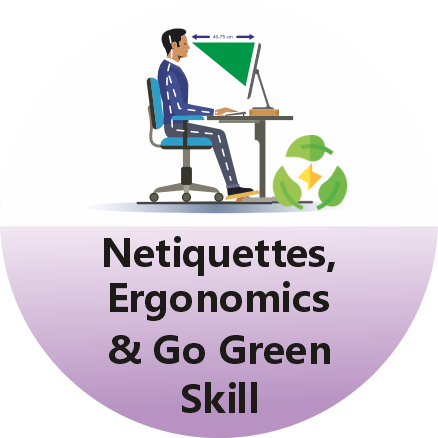 Netiquettes and Computer Ergonomics, Go-Green Skills
Norms of using computer in a healthy way
Netiquettes and Computer Ergonomics, Go-Green Skills
Norms of using computer in a healthy way
Netiquettes
- Netiquettes
- Email etiquettes
- Online forms and their risks
- Be vigilant while using online classifieds
- Rules of Net-etiquettes
- Sharing is caring, but not on Internet
- Deactivate unused accounts
- Safe online recharge
- Risks in Online registration
- Validate before sharing online
- If you copy-paste, first know about copyrights
- Importance of strong password
- Sharing photos online
- Safe Downloading
- Stay safe on social networking sites
- Surf smarter
- Digital signatures
- Be safe while posting your resume online
- Trusted websites
- Cyber Hacking
- Cyber Mischief
- Cyber Stalking
- Cheating by personation
- Cyber Identity Fraud
- Some safe e-commerce tips
- Keep your software/apps updated
- Be vigilant while using online classifieds
- Just because it’s free, it doesn’t mean it’s safe
Smart Habits
- Encrypt files to protect data
- Online gaming is not always fun!
- Keep your account information for yourself
- Use antivirus protection before you go online
- Protect yourself from cyber bullying
- Stay safe while booking tickets online
- Create back-up copies for your important stuff
- Sharing is caring, but not on the Internet
- Unsecure wireless connections
- Peer to peer sharing
- Keep your data private online
- Surf smarter
- Don't leave copies of your printed pages in a common printer
- Use emoticons in your post
- Don't Type in ALL CAPS
- Read the email before you send
- Risks associated with social bookmarking
- Unsecured wireless connections
- Do not attach unnecessary files
- Don't reply a private message on "reply all”
Ergonomics
Correct Sitting Postures while using computer
- Importance of ideal posture while using computer
- Some neck exercises for stress relief
- Ideal neck Posture
- Shoulder exercises for computer users
- Leg exercises
- Stretch your legs
- Why use an ergonomic chair?
- Use ergonomic table
- Ergonomic keyboard drawer
- Avoid the Lower Back Pain
- Prevent musculoskeletal disorders
- Exercises for your back
- Prevent ergonomic injuries in children
Using Mouse and Keyboard Correctly
- Correct use of keyboard and posture
- Ergonomic keyboards
- Tips to use the keyboard
- Use Mouse Ergonomically
- What is an ergonomic mouse?
Taking Care of Eyes
- Eyes vis-a-vis your computer screen
- Adjust the display’s brightness
- Check and optimize the display settings
- Rule of 20-20-20”
- Prevent computer vision syndrome
- Blink your eyes
- Soothe your eyes
- Proper lighting around computer workstation
Taking Care of Ears
- Avoiding high audio volume
- Helpful tips: Reading from your computer screen
- Using ergonomic headphones
Taking Care of Hands and Fingers
- Exercises your hands and fingers
- Ouch! That wrist hurts!
- Flex those fingers
Forming good Habits
- Break the harmful habits
- Adjust your workstation for comfort
- Check the position of your monitor
- Don’t keep those legs dangling
- Correct laptop posture
- Exercises at your desk
- Avoid eating at your desk
- Breathing exercises
- Keep away from the noise
- Taking care while working at AC workplaces
Go Green
Saving Energy
- Importance of shutting down and logging off a computer
- Turn off your monitor
- Did you correctly shutdown your computer?
- Hibernate, lock or shut down?
- Screensavers are not energy savers, shun them
- Use apps to save time and fuel
- Use Google Maps to save fuel and time
- Save fuel, go green
- Tips on green computing
- Use shared drive storages instead of email attachments
- Analyze your computer's energy usage
- Use effective power management
- When multitasking, close the unused apps
- Organize files and folders: Saves energy
- Use energy saving technology
- Buy computers that come with a Star rating
- Buy only energy efficient products
- Upgrade to a flat panel LCD monitor
- Adjust the brightness on your monitor
- Remember to turn-off the Bluetooth and Wi-Fi
- Turn off the peripherals
- Verify if your computer’s power supply is 80 plus Certified
- Extend the life of your computer
Paperless Working
- Save paper, use the Notepad app
- Send e-invites and save paper
- Reduce your carbon footprints
- Share online and reduce paper waste
- Save paper, use both sides of paper
- Use paperless communication
- Use online services wherever possible
- Think before you take a printout
- Reduce paper margins to decrease paper consumption
- Use soft copies of textbooks whenever possible
- Use digital copies over hard copies
- Opt for e-bills and e-bank statements to save environment
- Use printer rationally, opt for eFax
- Replace colored prints with black and white
Saving Resources
- Use Google Calendar to work effectively
- Create shortcuts, not copies
- Avoid unnecessary digital storage and email attachments
- Delete unused files from the hard drive
- Archive large email folders
- Avoid non-productive message and mail forwards
- Use zip files and PDFs
- Video conference to save time and resources
- Download only the apps and programs you need
Recycling
- Recycle your old computer
- Separate your e-waste and techno trash
- Reuse ink cartridges